
 Add to Chrome
Guide
How to save a ChatGPT conversation as a PDF, without gaps
Printing a ChatGPT chat to PDF works for a short conversation and goes wrong on a long one: messages the page has not loaded yet are left out, the sidebar prints alongside the chat, and code blocks split across pages. ChatGPT itself has a PDF download only for deep research reports. For a complete, clean PDF of any chat, or of just the messages you pick, use an exporter that reads the whole conversation first. Here are all three routes and what each gives you.
Three ways at a glance
| Method | Covers | Formatting | Cost |
|---|---|---|---|
| Browser: Print → Save as PDF | Whatever the page has loaded on screen | Sidebar and buttons print too; code and tables can split | Free |
| ChatGPT's own download | Deep research reports only | Clean | Needs a plan that includes deep research |
| Backup My AI Chat | Any chat, whole or the messages you tick | Code, tables, lists, links and maths kept; eight themes | Free, no daily limit, made in your browser |
Print to PDF, and why long chats come out broken
Press Ctrl+P (Cmd+P on a Mac) in the chat and choose Save as PDF. For a short chat this is fine. For a long one, three things go wrong, and users describe all three in a community thread titled saving a ChatGPT chat as PDF without broken formatting:
- Missing text. ChatGPT loads older messages as you scroll up. Print captures only what has been loaded, so the PDF starts partway through the conversation, or has blank stretches.
- Interface in the page. The sidebar, the input box and the buttons print along with the chat, because print sees the whole page.
- Broken blocks. Code blocks and tables are split wherever a page break falls, and wide tables are cut off at the margin.
A partial fix: scroll to the very top of the chat first, wait for every message to load, then print. That cures the missing text but not the sidebar or the splits, and on a very long chat it is slow and easy to get wrong. OpenAI does not document printing at all; it is a browser feature applied to a page that was never laid out for paper.
Deep research reports have their own PDF button
One exception inside ChatGPT: completed deep research reports can be downloaded in several formats, "including Markdown, Word, and PDF" (OpenAI on deep research, read 6 October 2026), from the share icon on the report. It covers the report, not the conversation around it, and deep research is available on the plans that include it. For an ordinary chat there is no equivalent button.
One click to a complete PDF
- Add Backup My AI Chat to Chrome, Edge or Brave and open the conversation on chatgpt.com.
- Press the Export button in the corner of the page. The format selector is set to PDF by default; press Export again.
- The PDF downloads to your Downloads folder, and a message confirms how many messages it contains.
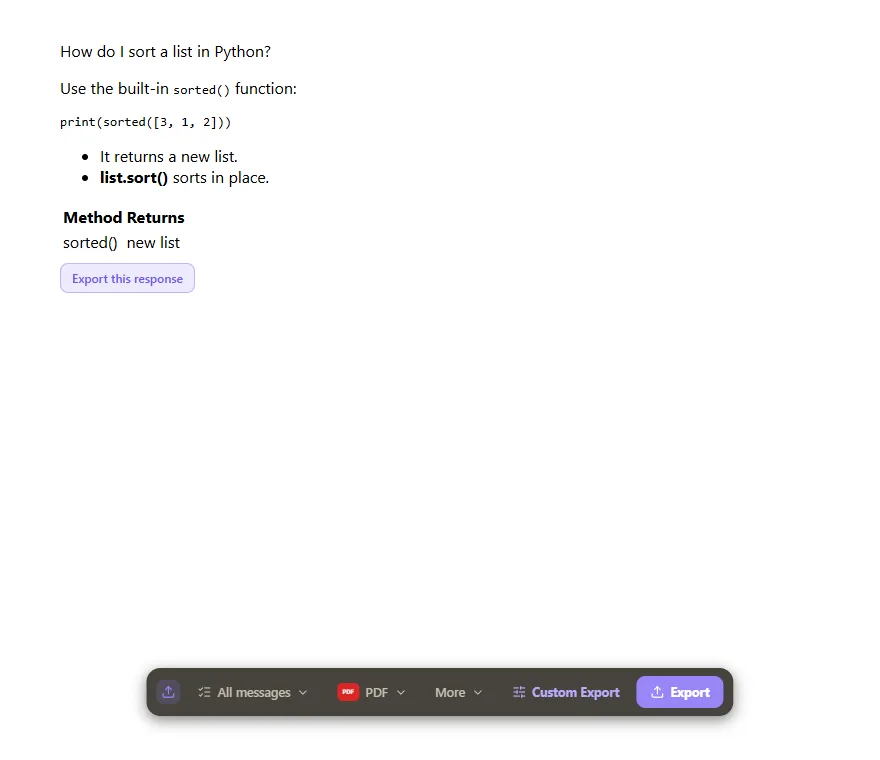
The extension reads the whole conversation rather than the screen, so nothing depends on how far you have scrolled. Headings, lists, tables, code blocks with their language, links, bold and italic, and maths keep their formatting, and the model's thinking section can be included where ChatGPT shows one. The PDF is built in your browser; nothing is uploaded, and there is no daily limit. The two most installed rival extensions make PDFs on their own servers and cap the free plan at three a day, as read on their listings on 6 October 2026; see AI chat exporter extensions compared.
A PDF of only some messages
- Only your prompts, or only the answers. The message selector on the toolbar switches between All messages, Prompts and Responses.
- A hand-picked set. Open Custom Export. Tick the messages you want, or search inside the conversation to find them, check the preview, and export as PDF from the bar at the bottom.
- One answer. Every answer has an Export this response button under it.
Make the PDF look right
PDFs are rendered with your Style Settings: one of eight themes (Light, Dark, Note, Old Paper, Sakura, Blue Mist, Fresh Green and Lavender), a page width, a font size (small, medium or large), and whether each message shows its time and whether thinking sections are included. The settings page shows a live preview. In Custom Export you can change the theme and font size for one export without touching the defaults. For a stack of chats as one document, Bulk Export produces one merged PDF with a section per chat, or a .zip of separate PDFs; see backing up all your ChatGPT chats.
A Word file instead?
If the PDF is for someone who will edit the text, export Word (.docx) from the same bar; it opens in Microsoft Word, Google Docs and LibreOffice. All formats are described in file formats and what each contains.
What Backup My AI Chat does not do
- It runs in desktop Chrome and Microsoft Edge. There is no phone, Firefox or Safari version. In Brave and other Chromium browsers, Auto-save has not been tested yet.
- It reads the chats in the account you are signed in to. It cannot bring back a chat that is already deleted.
- Auto-save runs while the browser is open. A run that fell due while the browser was closed is caught up when it starts.
- Gemini, Grok and DeepSeek are read through one of their own tabs: Sync now opens one in the background and closes it; scheduled runs save those services only while such a tab is already open.
- Each AI service's terms restrict automated access to some degree, and none of them has approved this tool. Check the terms of the services you use.
Need to keep editing the text? A Word file instead of a PDF is the better fit.
Questions
Does ChatGPT have a built-in PDF export?
Only for deep research reports. For a normal conversation, ChatGPT offers a share link and copying; a PDF means printing the page or using an exporter.
Can I save a ChatGPT chat as a PDF on my phone?
Not with Backup My AI Chat, which is a desktop extension for Chrome, Edge and other Chromium browsers. On a phone, the browser's own share-to-PDF or print function is what exists, with the same gaps as desktop printing.
Can I put many chats into one PDF?
Yes. In Bulk Export, tick the chats and choose "One merged file"; each chat becomes a section. Bulk Export works on chats the extension has saved, so run Auto-save first for chats you have not exported before.
Why is my printed PDF blank or missing the start of the chat?
Because the page had not loaded those messages when you printed. Scroll to the top and wait before printing, or export with the extension, which reads the whole conversation.