 Backup My AI Chat
Grok
How to export Grok chats to PDF, Word or Markdown
Grok runs in two places, grok.com and inside X, and neither has a button that saves one conversation as a file. xAI offers an account-level download of your data from Settings. Backup My AI Chat exports the open Grok conversation on either site to PDF, Word, Markdown, text, JSON or image, and Auto-save keeps every Grok chat, generated images included, as files in a folder.
Grok's options at a glance
| Option | Covers | You get | Main limit |
|---|---|---|---|
| Data download in Settings | Your account | Your data, from grok.com or the Grok app | Raw account data; xAI does not document the format or timing |
| Share link | One chat | A public page | Not a file |
| Backup My AI Chat | One chat, or all of them | PDF, Word, Markdown, text, JSON or image; Markdown files kept up to date | Desktop Chrome and Edge only |
xAI's data download
xAI's legal FAQ says to go to the Grok mobile app or grok.com, under Settings and Data Controls, to delete or download your data (xAI FAQ). The FAQ does not say what format the download takes or how long it takes to arrive, so treat it as a raw copy for safekeeping, not as documents to read.
One chat as a file, with Backup My AI Chat
- Add Backup My AI Chat to Chrome or Edge and open the conversation on grok.com or at x.com/i/grok. The extension works on both.
- Press Export and choose PDF, Word, Markdown, text, JSON or image.
- To keep only some messages, open Custom Export and tick the ones you want.
Headings, lists, tables, code blocks and links keep their formatting. Files are made in your browser; nothing is uploaded.
Every Grok chat, kept in a folder
Auto-save writes each Grok conversation to a folder as a Markdown file and keeps it current. Images that Grok generated in a chat are saved next to it, in a _files folder, and linked from the Markdown.
- Open Backup My AI Chat from the browser toolbar and go to Auto-save chats to a folder.
- Under Folder, choose a folder on your computer. Chrome asks once whether the extension may edit files in that folder. Auto-save writes nowhere else; one-off exports go to your Downloads folder.
- Under Accounts, tick the services to include. Each one shows whether you are signed in.
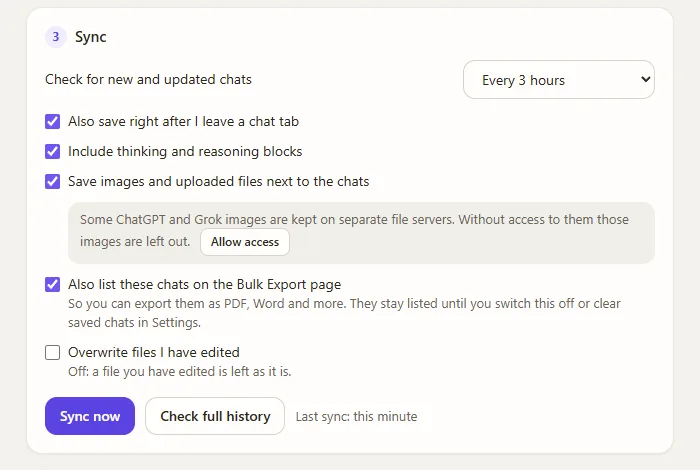
- Under Sync, pick how often to check for new and updated chats, then press Sync now. The first run saves your whole history; later runs save only what changed. A service is synced a few chats at a time, and if a site answers "too many requests" the extension slows down for that service rather than failing.
Grok chats go into a Grok subfolder, next to the folders for your other assistants. Each file is ordinary Markdown whose header lists title, source, conversation id, link, created, updated, model, message count and tags, followed by the conversation with one heading per message.
Limits to know
Questions
Can I export a Grok conversation from X?
Yes. Backup My AI Chat works on Grok inside X (x.com/i/grok) as well as on grok.com. Open the conversation and press Export.
Does Grok have a built-in export?
Not for a single conversation. xAI offers a download of your account data from Settings and Data Controls, and share links for individual chats.
Are the images Grok made saved too?
Yes, with Auto-save. Generated images are saved in a _files folder next to the chat and linked from the Markdown, once you have allowed access to Grok's image server.
Can I export all my Grok chats at once?
Auto-save in Backup My AI Chat saves every Grok chat as a Markdown file on its first run. Bulk Export then turns the saved chats into PDF or Word files.