 Backup My AI Chat
Copy-paste loses the formatting.
Code, tables and maths come out as a wall of text.
Free Chrome extension
Backup My AI Chat is a free Chrome extension that turns your ChatGPT, Claude, Gemini, Perplexity, Grok, DeepSeek and Microsoft Copilot conversations into PDF, Word and Markdown files, and auto-saves your chat history to a folder on your own computer.
No account. Nothing is uploaded. Works in Chrome and Microsoft Edge.
Browser extensions install on a computer. Email yourself this page to install it later.
The problem
The answer you need next month is somewhere in a sidebar of two hundred chats. Copy-paste breaks the code blocks. Printing to PDF cuts tables in half. The official data export hands you your whole account as one bundle of raw data. And if a chat is deleted, or the service changes, it is gone.
Code, tables and maths come out as a wall of text.
Sidebars in, half your code out.
Most services give you the whole account as one data file. A few can export a single answer, each in its own way, and none keeps a folder up to date.
Two ways
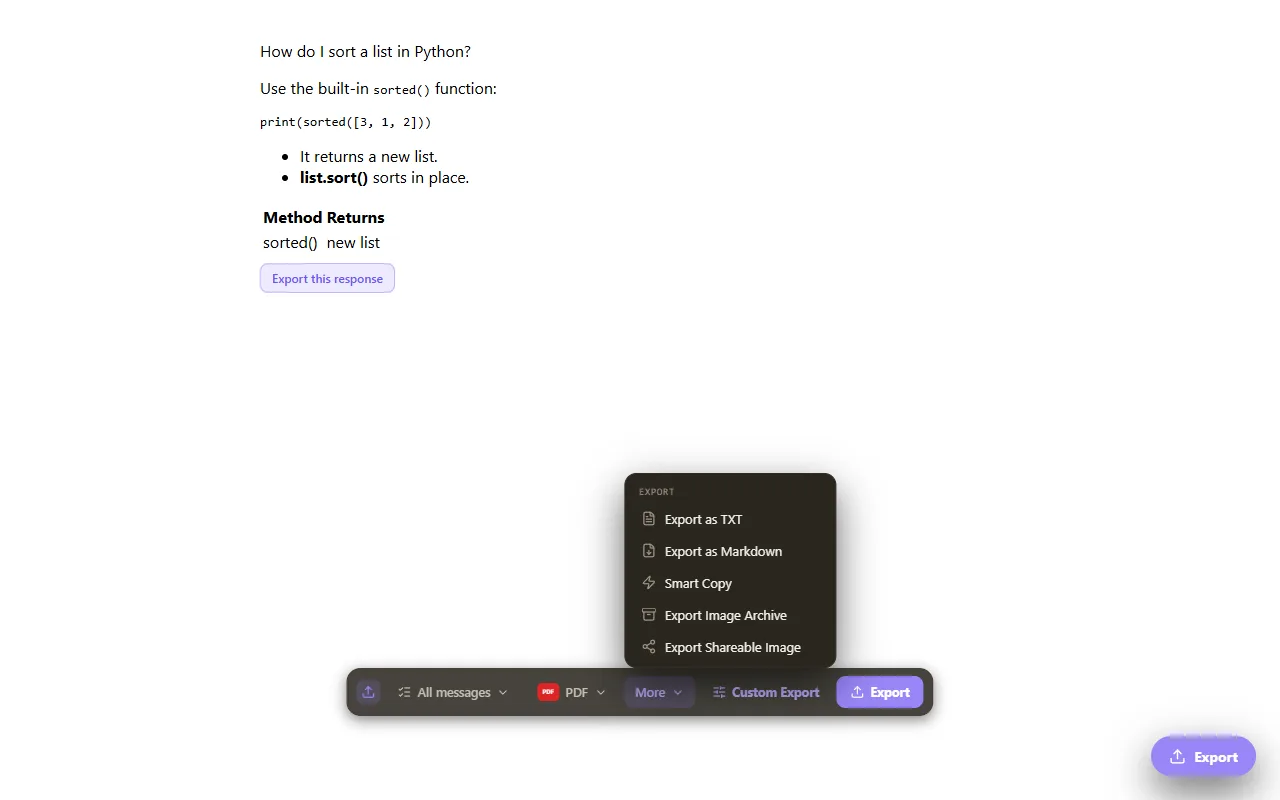
Open any conversation on ChatGPT, Claude or another supported site and press the Export button that Backup My AI Chat adds to the page. Choose PDF, Word, Markdown, text, JSON or an image. Custom Export lets you pick individual messages, a theme and a font size; Bulk Export saves the chats the extension has kept, in one go.
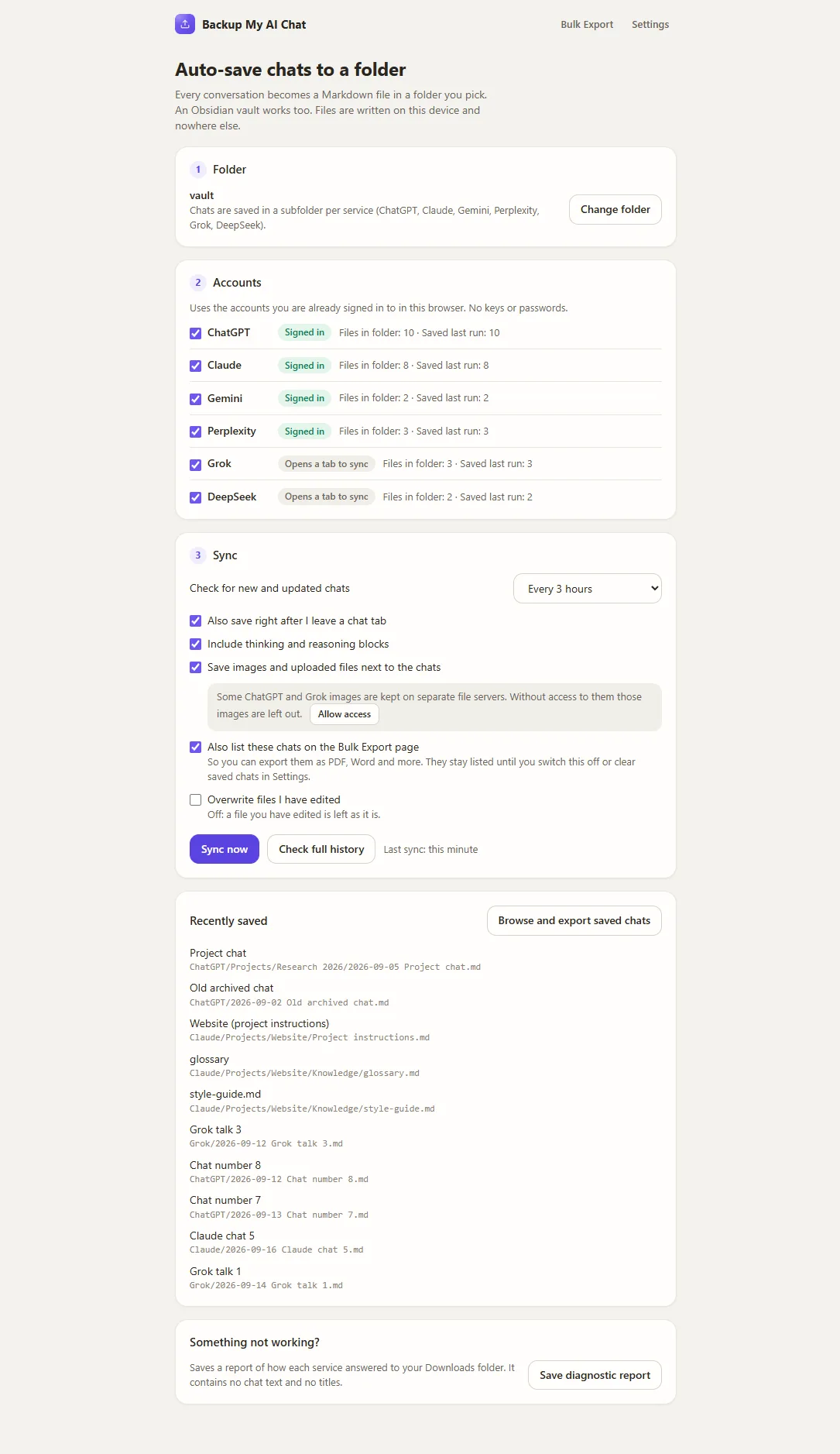
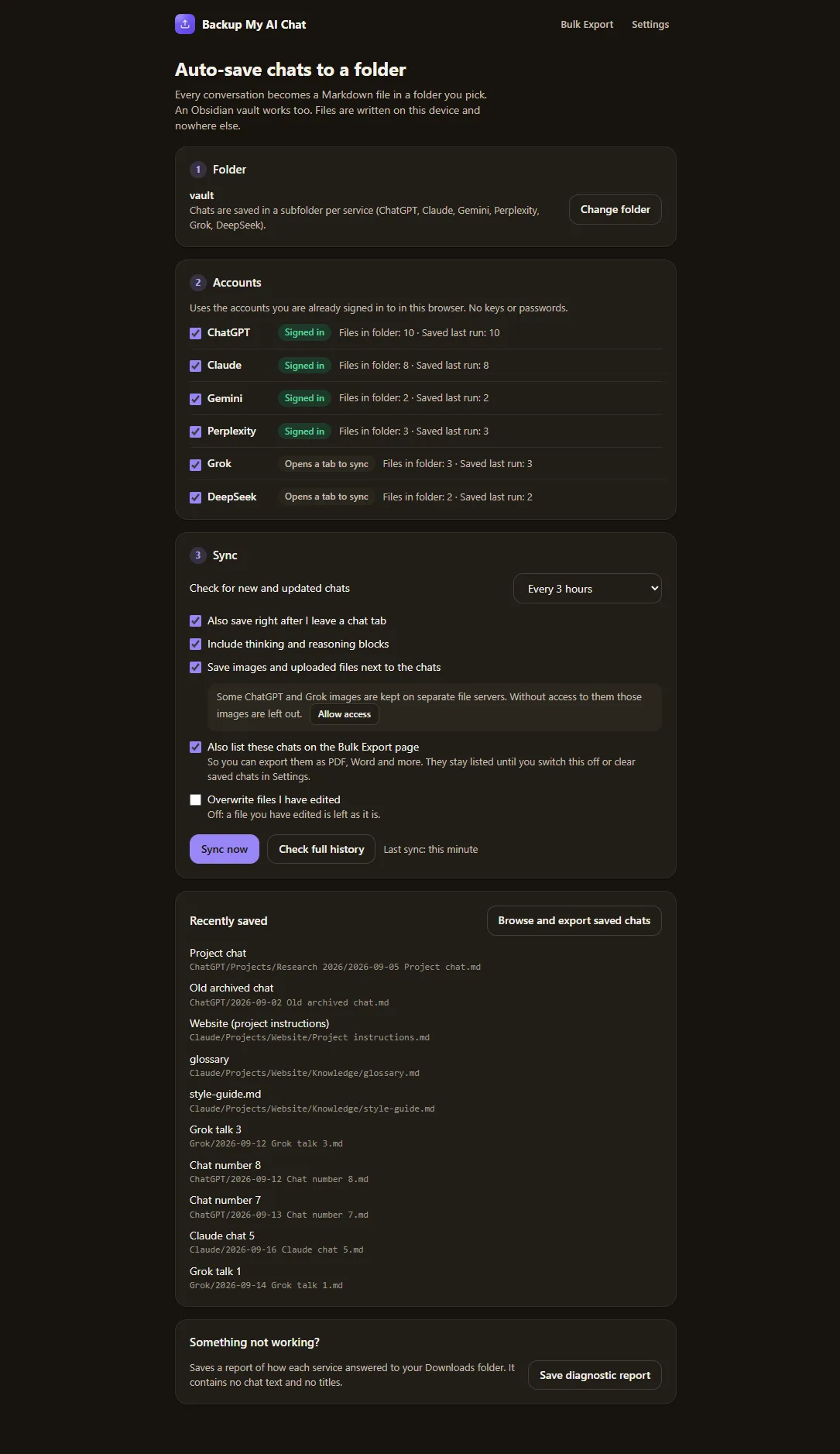
Choose a folder once. Backup My AI Chat saves your whole chat history as Markdown files, then keeps the folder up to date in the background. Open the folder in Obsidian, a code editor or anything that reads text.
How to back up all your ChatGPT chatsHow to save AI chats to Obsidian
Features
Backup My AI Chat is a free browser extension for Google Chrome and Microsoft Edge that exports conversations from ChatGPT, Claude, Gemini, Perplexity, Grok, DeepSeek and Microsoft Copilot to PDF, Word (.docx), Markdown, plain text, JSON or an image. It also auto-saves every conversation from ChatGPT, Claude, Gemini, Perplexity, Grok and DeepSeek as Markdown files in a folder on your computer, which can be an Obsidian vault. It needs no account and uploads nothing.
Backup My AI Chat exports a chat to six formats: PDF for sharing, Word (.docx) for editing, Markdown for notes, plus plain text, JSON and image.
Headings, lists, tables, code blocks, links, bold and italic, and maths keep their formatting in every export. The model's thinking section can be included where the site shows one.
Bulk Export lists the chats the extension has saved, including every auto-saved chat. Tick the ones you want and get one merged file, or one file each in a .zip.
Custom Export lets you choose individual messages, a colour theme and a font size before you export.
Auto-save writes every conversation to a folder on your computer as a Markdown file with title, source, link, dates and model in the header. It runs on a schedule you choose, from hourly to daily, while the browser is open, with no duplicates.
Backup My AI Chat needs no account and uploads nothing: files go from the AI site straight to your disk.
Auto-save keeps images and uploaded files in a _files folder next to the chat and links them from the Markdown, where the AI site allows it.
The browser's side panel lists your saved chats, and the right-click menu on any chat page has the export actions.
The interface of Backup My AI Chat follows your browser's language and is available in 55 of them. The translations are machine-made and not yet reviewed by native speakers.
How it works
Open the extension from your toolbar. There is nothing to sign up for.
Press Export on any chat page, or open Auto-save and pick the folder your files should go to.
PDFs and Word files land in Downloads. Auto-saved chats appear in your folder, one Markdown file each, sorted by service.
File format
Each auto-saved chat is an ordinary Markdown file whose header lists title, source, conversation id, link, created, updated, model, message count and tags, followed by the conversation with one heading per message. Search, backup, Git and Obsidian all just work.
---
title: "Sorting a list in Python"
source: chatgpt
id: "…"
url: https://chatgpt.com/c/…
created: 2026-03-04T09:12:00Z
updated: 2026-03-04T09:20:41Z
model: "gpt-5"
messages: 2
tags:
  - ai-chat
  - chatgpt
---

# Sorting a list in Python

## You · 2026-03-04 09:12

How do I sort a list of dictionaries by a key?

## ChatGPT · 2026-03-04 09:12

Use `sorted()` with a key function: …
Comparison
| What you need | Backup My AI Chat | Copy and paste | Print to PDF | The site's own account export |
|---|---|---|---|---|
| One chat as a clean PDF or Word file | Yes | No | PDF only, with sidebars and page breaks | No |
| Keeps code, tables and maths | Yes | No | Partly: long code and tables get cut | Mostly, as raw data |
| Many chats at once | Yes | No | No | Whole account only |
| Keeps itself up to date | Yes | No | No | No |
| Works across several AI services | Seven | By hand, one chat at a time | By hand, one chat at a time | One service each |
| Readable files in your own folder | Yes | Only if you paste and save each one | PDF only | One archive or data file |
The last column is each service's whole-account data export. Some services also have per-chat tools: Perplexity exports a thread to PDF, Markdown or DOCX, and Gemini sends a response to Google Docs. They differ by service and do not cover every chat. For other browser extensions, see AI chat exporter extensions compared.
Supported services
| Service | Export the open chat | Auto-save your history |
|---|---|---|
| ChatGPT | Yes | Yes |
| Claude | Yes | Yes |
| Gemini | Yes | Yes |
| Perplexity | Yes | Yes |
| Grok | Yes | Yes |
| DeepSeek | Yes | Yes |
| Microsoft Copilot | Yes | No |
Auto-save also picks up ChatGPT projects, archived chats and Canvas documents, and Claude projects, project knowledge and artifacts. Grok works on grok.com and in X. More on exporting Claude chats and exporting Gemini chats.
Privacy
Backup My AI Chat reads your chats in your browser and writes them to your disk.
Backup My AI Chat needs no account, password or API key. It reads your chats through the AI accounts you are already signed in to in your browser.
Backup My AI Chat writes auto-saved chats only to the one folder you picked, and one-off exports only to your Downloads folder. You can change the folder at any time.
When you install it, Chrome lists what the extension may use. Each item is there for one reason, and files you export or auto-save stay on your disk if you ever uninstall it.
Guides
FAQ
Install Backup My AI Chat, open the conversation on chatgpt.com, press Export and choose PDF. The file downloads with its code blocks, tables and formatting intact. The same button exports to Word, Markdown, text, JSON or an image.
Yes. Open Auto-save, choose a folder and press Sync now. Backup My AI Chat saves every conversation in your account as a Markdown file, then keeps the folder up to date. To get PDF or Word files for many chats, use Bulk Export.
Backup My AI Chat exports conversations from ChatGPT, Claude, Gemini, Perplexity, Grok, DeepSeek and Microsoft Copilot. Auto-save, which keeps every conversation as a Markdown file in a folder, is confirmed on ChatGPT, Claude, Gemini, Perplexity, Grok and DeepSeek. Microsoft Copilot has no Auto-save.
Yes. In Backup My AI Chat, choose your Obsidian vault, or a folder inside it, as the Auto-save folder. Each chat becomes a Markdown note whose properties header lists title, source, conversation id, link, created, updated, model, message count and tags. No Obsidian plugin is needed.
Only on your computer. Exports go to your Downloads folder and auto-saved chats go to the folder you chose. Backup My AI Chat has no server that receives your conversations.
Yes. As of October 2026, every feature of Backup My AI Chat (export to six formats, Custom Export, Bulk Export and Auto-save) is free, and it needs no account or API key.
No. Backup My AI Chat works with the account you are already signed in to in your browser, on free and paid plans alike.
ChatGPT's Export data sends your whole account as one archive of raw data by email, which can take a while to arrive. Backup My AI Chat exports the single chat you are in as a PDF, Word or Markdown file straight away, and Auto-save keeps one Markdown file per conversation in a folder you choose.
On a schedule you choose: every hour, 3, 6 or 12 hours, or once a day, and also right after you leave a chat tab if you switch that on. It runs while the browser is open, and a run that fell due while it was closed is caught up at the next start. The first run of Backup My AI Chat saves your whole history; later runs save only new and changed chats.
If you edit an auto-saved Markdown file, Backup My AI Chat notices the change and does not overwrite your version on the next sync. A setting turns this off if you would rather always have the latest copy from the chat.
Yes, where the AI site allows it. Backup My AI Chat saves images and uploaded files in a _files folder next to the chat, and can include the model's thinking section where the site shows one. Auto-save also picks up ChatGPT projects, archived chats and Canvas documents, and Claude projects, project knowledge and artifacts.
Chrome asks to let Backup My AI Chat read the AI chat sites you use, because it has to read your own conversations there to export and save them. It also uses storage (your settings and the saved chats that the side panel and Bulk Export list), downloads (to save exported files), alarms (to run Auto-save on your schedule), the right-click menu and the side panel. Access to the file servers where ChatGPT and Grok keep images is optional and is requested only when you click Allow access on the Auto-save page; it also uses the active tab to read the chat you are exporting.
Backup My AI Chat reads your own chats through your signed-in browser session. Each AI service's terms restrict automated access to some degree, and none of them has approved this tool. Check the terms of the services you use.
Backup My AI Chat runs in Chrome and Microsoft Edge on desktop. It also runs in Brave and other Chromium browsers, but Auto-save has not been tested there yet: it needs the browser's folder-access feature, which Brave turns off by default.
No. Backup My AI Chat is an extension for desktop Chrome and Microsoft Edge. It does not run on phones or tablets, or in Firefox or Safari.
Your exported and auto-saved files stay where they are: they are ordinary files on your disk. Uninstalling Backup My AI Chat removes only the extension and its settings.
The interface of Backup My AI Chat follows your browser's language and is available in 55 languages. The translations are machine-made and not yet reviewed by native speakers. Chat content and file names are never translated. This website is in English.
No. Backup My AI Chat is an independent tool and is not affiliated with or endorsed by any AI provider.
Add Backup My AI Chat, choose a folder, and every chat you have is a file you own.
Add to Chrome, it's free