 Backup My AI Chat
Claude
How to export Claude chats to PDF, Word or Markdown
Claude has no button that saves one conversation as a file. Anthropic offers an account-wide data export, a share link for a single chat, and downloads for artifacts. To get a Claude conversation as a PDF, Word or Markdown file, or to keep every Claude chat and project as files in a folder, use Backup My AI Chat.
Claude's options at a glance
| Option | Covers | You get | Main limit |
|---|---|---|---|
| Data export | Your whole account | A download link by email | Web and desktop only; raw account data, not a document |
| Share link | One chat | A public page with a snapshot | Not a file; uploaded files are left out |
| Artifact download | One artifact | Word, PDF, Markdown or Google Docs for documents | The artifact only, not the conversation around it |
| Backup My AI Chat | One chat, many chats, or all of them | PDF, Word, Markdown, text, JSON or image files | Desktop Chrome and Edge only |
Anthropic's data export
- Click your initials in the lower left corner.
- Select Settings, then open the Privacy section.
- Click Export data. A download link arrives by email.
From Anthropic's export article, updated in July 2026.
Share links
Click Share in the upper right of a chat, then Share again to create the link. The snapshot includes the messages sent before sharing and any artifacts; later messages stay private. Files you uploaded are not included. Anyone with the link can open it without a Claude account, and on Team and Enterprise plans chats can only be shared inside the organisation (Anthropic on sharing).
Artifacts
Artifacts have their own export. Document artifacts export to Word, PDF, Markdown and Google Docs, decks to PowerPoint and PDF. Artifacts made before 16 September 2026 use the controls at the top of the artifact panel to copy or download (Anthropic on artifacts). This gives you the artifact, not the conversation that produced it.
One chat as a file, with Backup My AI Chat
- Add Backup My AI Chat to Chrome or Edge and open the conversation on claude.ai.
- Press Export and choose PDF, Word, Markdown, text, JSON or image.
- To keep only some messages, open Custom Export, tick the ones you want and pick a theme and font size.
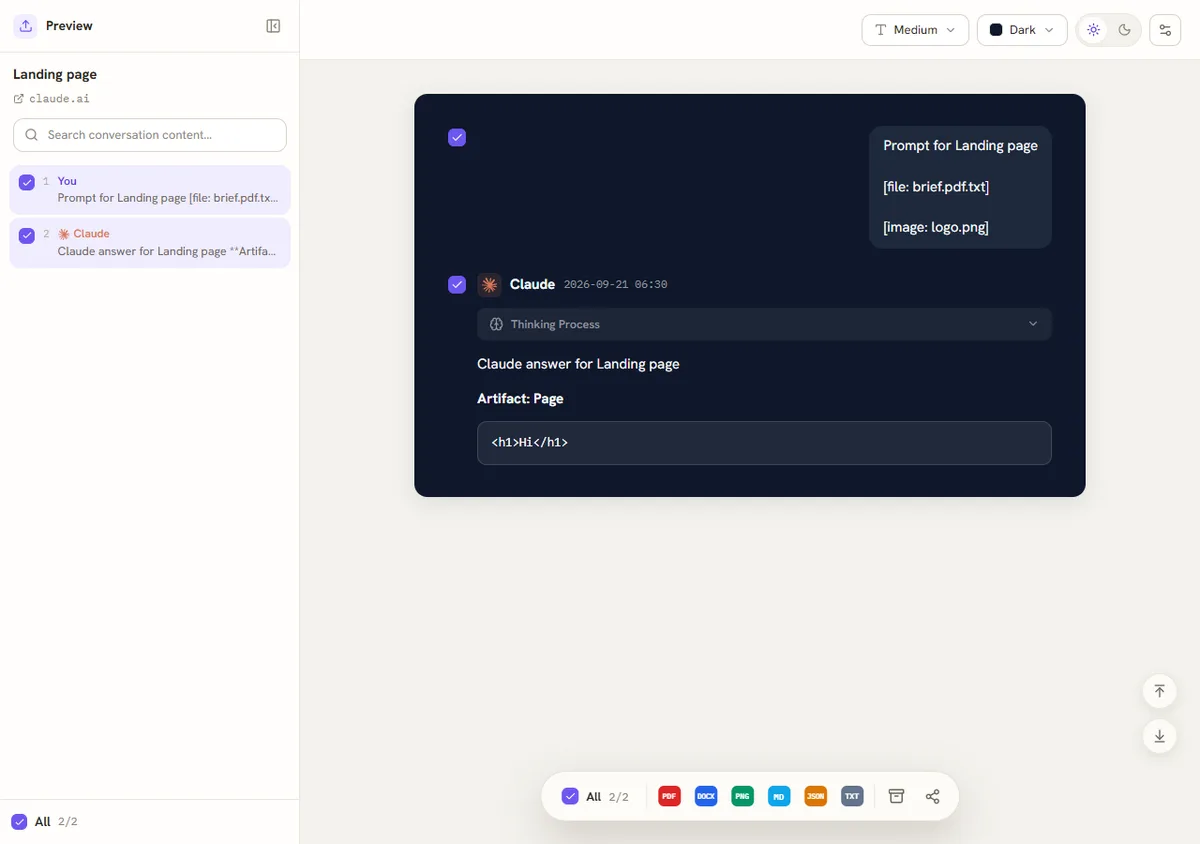
An artifact's content is saved with the answer it belongs to, and Claude's thinking section can be included when the conversation has one. Files are made in your browser; nothing is uploaded.
Every Claude chat and project, kept in a folder
Auto-save writes each Claude conversation to a folder as a Markdown file and keeps it current. It also picks up project chats, project instructions, project knowledge files, artifacts (first and final version), images and uploads, and the text of uploaded documents.
- Open Backup My AI Chat from the browser toolbar and go to Auto-save chats to a folder.
- Under Folder, choose a folder on your computer. Chrome asks once whether the extension may edit files in that folder. Auto-save writes nowhere else; one-off exports go to your Downloads folder.
- Under Accounts, tick the services to include. Each one shows whether you are signed in.
- Under Sync, pick how often to check for new and updated chats, then press Sync now. The first run saves your whole history; later runs save only what changed. A service is synced a few chats at a time, and if a site answers "too many requests" the extension slows down for that service rather than failing.
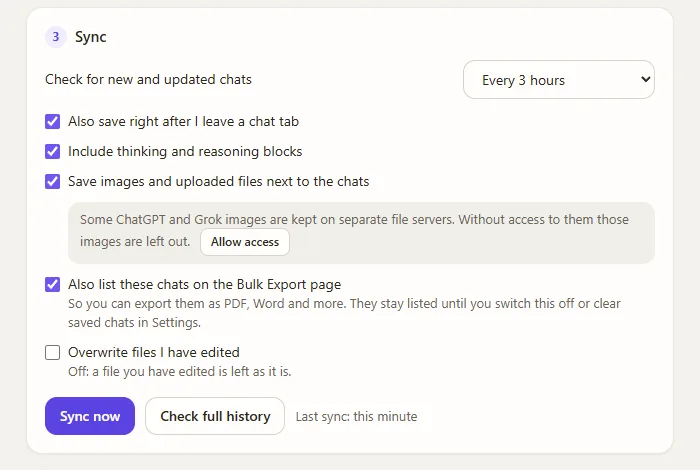
Projects get their own folders, with the project's instructions and knowledge files beside the chats:
Claude/
├── 2026-09-16 Claude chat 5.md
└── Projects/
    └── Website/
        ├── Project instructions.md
        └── Knowledge/
            ├── glossary.md
            └── style-guide.md
Each file is ordinary Markdown whose header lists title, source, conversation id, link, created, updated, model, message count and tags, followed by the conversation with one heading per message.
Limits to know
Questions
Can you export a single Claude chat?
Not as a file with Claude's own tools. Claude offers a share link for one chat and a data export for the whole account. Backup My AI Chat exports the open chat to PDF, Word, Markdown, text, JSON or image.
How do I save a Claude chat as a PDF?
Open the chat on claude.ai, press Export in Backup My AI Chat and choose PDF. Without an extension, the browser's print dialog can save the page as a PDF; check the result for cut-off code blocks.
Can I export all my Claude chats at once?
Yes: Anthropic's data export gives you the whole account as data, and Auto-save in Backup My AI Chat gives you one Markdown file per conversation. Bulk Export produces PDF or Word files for the saved chats you tick, so run Auto-save first.
Can I export Claude conversations on my phone?
Anthropic says the data export cannot be run from the iOS or Android apps, and Backup My AI Chat is a desktop extension. Use a computer.
Is exporting Claude chats free?
Anthropic's data export is available on the Free plan. Every feature of Backup My AI Chat is free and needs no account.