 Backup My AI Chat
Guide
How to back up all your ChatGPT chats
There are three ways to back up every ChatGPT conversation: OpenAI's own data export, a bulk export to PDF or Word with a browser extension, and an automatic backup that writes each chat to a folder and keeps it current. The official export is complete but can take up to 7 days and arrives as raw data. The automatic backup takes a few minutes to set up and then looks after itself.
The three ways at a glance
| Way | What you get | How long it takes | Stays up to date |
|---|---|---|---|
| OpenAI's data export | One ZIP for the whole account, with your chats as JSON | Up to 7 days to arrive, by OpenAI's own figure | No. It is a snapshot; ask again for a new one |
| Bulk export with Backup My AI Chat | The chats you tick, as PDF, Word, Markdown, text, JSON or image | As long as the export takes to run | No. You run it when you want it |
| Auto-save with Backup My AI Chat | One Markdown file per conversation in a folder you choose | A few minutes to set up | Yes, on a schedule from hourly to daily |
Does ChatGPT keep your chats forever?
Mostly, until something removes them. OpenAI says regular and archived chats stay in your account until you delete them or a workspace retention policy removes them (chat and file retention). The risks are the exceptions:
- A deleted chat cannot be restored. It leaves your account view at once and is scheduled for permanent deletion within 30 days. OpenAI states that neither you nor its support team can bring it back.
- An export cannot rescue it either. The data export only contains chats that still exist.
- Workspace accounts follow the workspace's rules. If you are removed from a Business, Enterprise or Edu workspace, your access ends immediately.
- Temporary chats are not kept in your history unless you save them.
A backup made before any of these happens is the only copy you control.
Way 1: OpenAI's data export
This is the official route, and it costs nothing.
- Sign in to ChatGPT and open your profile menu.
- Select Settings, then Data controls.
- Under Export data, select Export, then Confirm export.
- Wait for the email or text message, open it and select Download data export while signed in to the same account.
Steps and limits are from OpenAI's export article.
Use it when you want a complete record straight from OpenAI and can wait. Keep the ZIP; it is the most complete raw copy you can get.
Way 2: bulk export to PDF, Word or Markdown
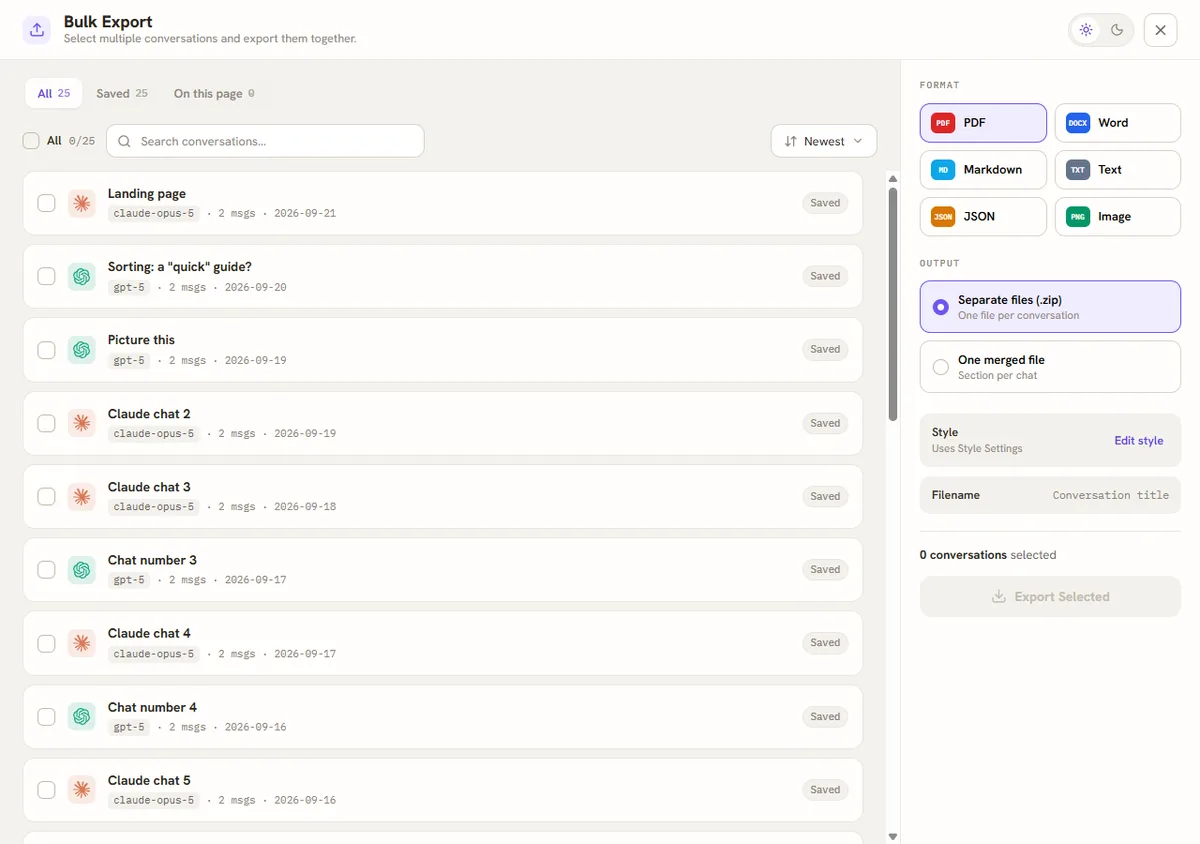
When you need readable files now, for a client, a course or a move to another tool, export many chats in one go. Bulk Export works on the chats the extension has kept: every chat Auto-save has saved (that is on by default), any chat you exported one by one, and the chat open in the current tab. So for the whole account, run Auto-save first (Way 3), then come back here.
- Open Bulk Export in Backup My AI Chat.
- Tick the conversations you want, or tick the All box. The search box narrows the list.
- Choose a format: PDF, Word, Markdown, Text, JSON or Image.
- Choose the output: Separate files (.zip), one file per conversation, or One merged file, with a section per chat.
- Press Export Selected. The file lands in your Downloads folder.
Way 3: automatic backup to a folder
A backup you have to remember is a backup you will skip. Auto-save writes every conversation to a folder as a Markdown file and then keeps the folder current.
- Open Backup My AI Chat from the browser toolbar and go to Auto-save chats to a folder.
- Under Folder, choose a folder on your computer. Chrome asks once whether the extension may edit files in that folder. Auto-save writes nowhere else; one-off exports go to your Downloads folder.
- Under Accounts, tick the services to include. Each one shows whether you are signed in.
- Under Sync, pick how often to check for new and updated chats, then press Sync now. The first run saves your whole history; later runs save only what changed. A service is synced a few chats at a time, and if a site answers "too many requests" the extension slows down for that service rather than failing.
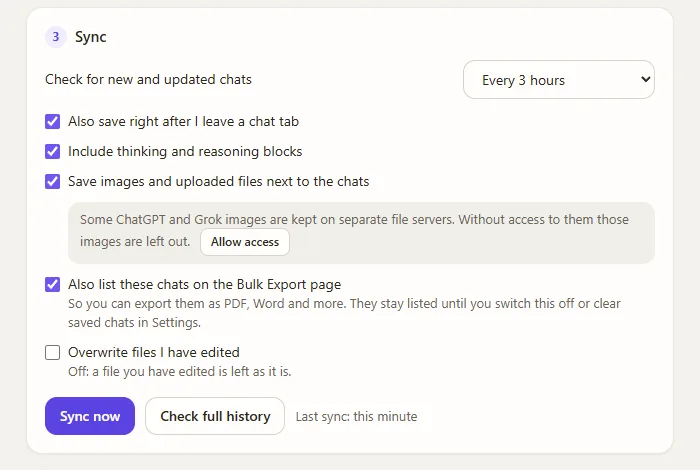
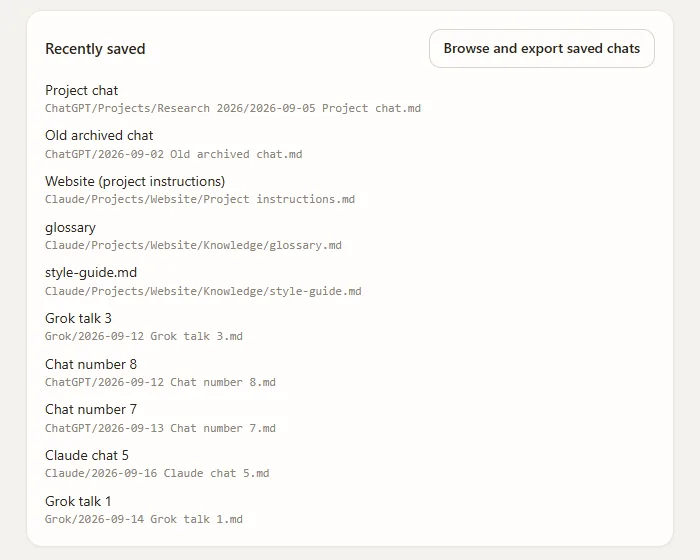
The folder ends up with one subfolder per service, and projects keep their own folders:
AI chats/
├── ChatGPT/
│   ├── 2026-09-12 Chat number 8.md
│   ├── 2026-09-13 Chat number 7.md
│   └── Projects/
│       └── Research 2026/
│           └── 2026-09-05 Project chat.md
├── Claude/
│   ├── 2026-09-16 Claude chat 5.md
│   └── Projects/
│       └── Website/
│           ├── Project instructions.md
│           └── Knowledge/
│               └── glossary.md
└── Grok/
    └── 2026-09-14 Grok talk 1.md
Each file is ordinary Markdown whose header lists title, source, conversation id, link, created, updated, model, message count and tags, followed by the conversation with one heading per message.
---
title: "Sorting a list in Python"
source: chatgpt
id: "…"
url: https://chatgpt.com/c/…
created: 2026-03-04T09:12:00Z
updated: 2026-03-04T09:20:41Z
model: "gpt-5"
messages: 2
tags:
  - ai-chat
  - chatgpt
---

# Sorting a list in Python

## You · 2026-03-04 09:12

How do I sort a list of dictionaries by a key?
Three rules keep the folder trustworthy:
- No duplicates. A chat that changes updates its own file, and a renamed chat keeps its file.
- Your edits are safe. If you have changed a file yourself, it is left alone unless you switch that protection off.
- It is just a folder. Put it inside the folder your usual backup already covers, or in an Obsidian vault, and nothing more is needed.
If something goes wrong
Stop ends a run and the next run continues where it stopped. Check full history walks the whole history again. If Chrome withdraws folder access after a restart, a red badge appears on the toolbar icon and Sync now asks for access again. Save diagnostic report writes a file to your Downloads folder describing how each service answered, with no chat text or titles, for support.
Limits to know
Questions
Can I restore a deleted ChatGPT conversation?
No. OpenAI states that a deleted chat cannot be restored in ChatGPT or through its support team, and that a data export cannot restore chats that were already deleted. Only a copy made beforehand survives.
How long does OpenAI's export take?
OpenAI says up to 7 days. Guides that promise minutes or a day are quoting their own experience, not OpenAI's figure. Once the message arrives you have 24 hours to download.
Do I need ChatGPT Plus to back up my chats?
No. The official export is available on the Free plan, and Backup My AI Chat works with free and paid accounts alike.
Can ChatGPT backups be automated?
Not with OpenAI's export, which you request by hand each time. Auto-save in Backup My AI Chat checks for new and changed chats on a schedule you choose, from hourly to daily, while the browser is open, and right after you leave a chat tab if you switch that on.
Which format is best for a backup?
Markdown for a backup you will search and keep, because it is plain text that every editor opens. PDF or Word when the file is for someone else to read.