
 Add to Chrome
Guide
How to export a ChatGPT project: every chat in one folder
ChatGPT has no export for a single project. Its data export is the whole account in one archive, and the only other route is one chat at a time. There is an open request on OpenAI's forum asking for a per-project option. Until it exists, two things work: export each project chat as a file from its page, or let Auto-save write every project chat into a folder named after the project and keep it current.
What ChatGPT offers for projects
Two things, neither of which is a project export. The account-wide data export (Settings → Data controls → Export) sends you everything in the account as a ZIP, up to seven days later, with your chats in one JSON file (OpenAI's export page, read 6 October 2026). Whether that file marks which chats belong to which project is not documented, so sorting it by project means a script and some guesswork. And within a chat, individual outputs can be downloaded: deep research reports as Markdown, Word or PDF, and writing blocks with their own download control (release notes). The older canvas feature is being retired from current models, per OpenAI's note of 28 May 2026.
The gap is well known: a forum request titled "can you please add exporting by projects option" asks for exactly this and had no official answer when read on 20 October 2026.
Export one project chat at a time
For a handful of chats this is enough. Open the project, open a chat, and press the Export button that Backup My AI Chat adds to the page. Choose PDF, Word, Markdown, text, JSON or image; the file lands in your Downloads folder. To keep only some messages, open Custom Export, tick the ones you want, and export from there. Repeat per chat. For a project with forty chats, use the folder instead.
Every chat in a project, kept in a folder
Auto-save treats a project as a folder. Every conversation in your ChatGPT account becomes a Markdown file, and chats that belong to a project go into ChatGPT/Projects/<project name>/, next to the folders for your other chats. The first run writes the whole history; later runs add only what is new or changed, and a chat that changes updates its own file, so there are never two copies.
Set up Auto-save
- Open Backup My AI Chat from the browser toolbar and go to Auto-save chats to a folder.
- Under Folder, choose a folder on your computer. Chrome asks once whether the extension may edit files in that folder. Auto-save writes nowhere else; one-off exports go to your Downloads folder.
- Under Accounts, tick the services to include. Each one shows whether you are signed in.
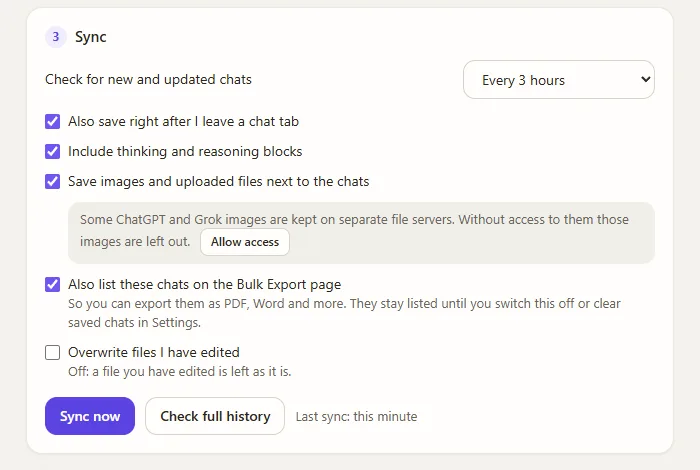
- Under Sync, pick how often to check for new and updated chats, then press Sync now. The first run saves your whole history; later runs save only what changed. A service is synced a few chats at a time, and if a site answers "too many requests" the extension slows down for that service rather than failing.
What the project folder looks like
AI chats/
└── ChatGPT/
    ├── 2026-09-13 Chat number 7.md
    ├── 2026-09-02 Old archived chat.md
    └── Projects/
        └── Research 2026/
            ├── 2026-09-05 Project chat.md
            ├── 2026-09-08 Literature notes.md
            └── _files/
                └── 2026-09-08 Literature notes/
                    └── figure-3.png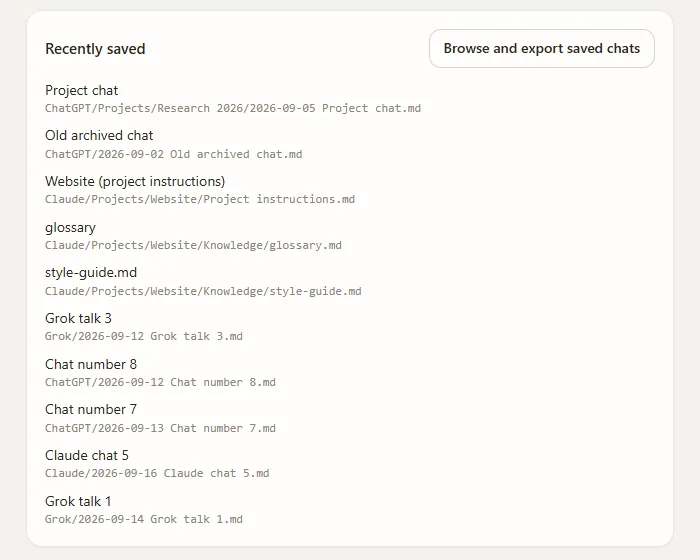
Canvas documents, images and uploads
For ChatGPT, Auto-save also keeps Canvas documents (the first and the final version of each), and images and uploaded files, which go into a _files folder next to the chat and are linked from the Markdown. Some ChatGPT images live on a separate file server; the Auto-save page asks once for permission to read it with an Allow access button, and without it those images are noted in the text instead.
Turn the folder into PDFs or Word files
Markdown is the right format to keep. When a client or a colleague needs the project as documents, open Bulk Export in Backup My AI Chat: it lists every chat Auto-save has saved. Search by the chat titles, tick the ones from the project, choose PDF or Word, and choose either one merged file with a section per chat or a .zip with one file per chat. Your Style Settings (theme, font size, page width) apply to all of them. See the folder layout and file formats for what each format holds.
What is not saved
- Files produced by ChatGPT's code runner are not saved.
- Project instructions and project-level files are saved for Claude projects (below); the feature list does not include them for ChatGPT, so do not count on them being in the folder.
- Memories, custom instructions and GPT settings are not part of any chat and are not saved.
What Backup My AI Chat does not do
- It runs in desktop Chrome and Microsoft Edge. There is no phone, Firefox or Safari version. In Brave and other Chromium browsers, Auto-save has not been tested yet.
- It reads the chats in the account you are signed in to. It cannot bring back a chat that is already deleted.
- Auto-save runs while the browser is open. A run that fell due while the browser was closed is caught up when it starts.
- Gemini, Grok and DeepSeek are read through one of their own tabs: Sync now opens one in the background and closes it; scheduled runs save those services only while such a tab is already open.
- Each AI service's terms restrict automated access to some degree, and none of them has approved this tool. Check the terms of the services you use.
Claude projects work the same way
For Claude, Auto-save goes further: project chats are filed in project folders, and the project's instructions, its knowledge files, and artifacts (first and final version) are saved alongside, with the text of uploaded documents. See exporting Claude chats and projects.
Questions
Does ChatGPT's data export include project chats?
The export is the whole account, so project chats are in it; whether they are marked as belonging to a project is not documented. Open conversations.json from a recent export to see what your copy contains.
Can I export a project as one PDF?
Yes: once the project's chats are in the folder, tick them in Bulk Export and choose "One merged file" with PDF as the format. Each chat becomes a section.
Is this free?
Yes. Auto-save, Bulk Export and every format are free in Backup My AI Chat, with no account. The one paid tool we found that exports ChatGPT projects does it by hand, without a schedule; see AI chat exporter extensions compared.
Not yet documented
What happens to the project folder when you rename a project in ChatGPT is not something the extension documents yet. Renamed chats keep their file; for renamed projects, check the folder after the next sync.