 Backup My AI Chat
Guide
How to export a ChatGPT conversation to PDF, Word or Markdown
ChatGPT has no button that saves one conversation as a file. Its own options are a share link, copy and paste, and downloads for a few special outputs such as deep research reports. To get an ordinary chat as a PDF, Word or Markdown file you either print the page from your browser or use an extension such as Backup My AI Chat, which exports the open chat in one click.
Every method at a glance
| Method | What you get | A file on your disk | Good for |
|---|---|---|---|
| Share link | A public web page with a snapshot of the chat | No | Showing a chat to someone |
| Copy and paste | Text in whatever app you paste into | Only after you save it yourself | A short passage |
| Print to PDF | A PDF of the page as the browser lays it out | Yes, PDF only | A quick one-off |
| Deep research download | The report as Markdown, Word or PDF | Yes, for reports only | Deep research reports |
| Backup My AI Chat | The chat as PDF, Word, Markdown, text, JSON or image | Yes | Any chat, whole or in part |
What ChatGPT offers itself
A share link
Open the conversation, select Share, then Create link or Copy link. The link is a snapshot: messages you add later are not included until you update it. On a personal account, anyone who has the link can view it, and links do not expire on their own. You manage or delete them under Settings → Data controls → Shared links (OpenAI on sharing).
A share link is a web page, not a file. It is no use offline, and it is not a backup.
Copy and paste
Since February 2026, pressing Ctrl+A or Cmd+A in a chat selects only the conversation, not the surrounding interface (release notes, 13 February 2026). What survives the paste depends on where you paste: a word processor keeps more than a plain-text field. Check code blocks and tables before you rely on the result.
Downloads for special outputs
Completed deep research reports can be downloaded as Markdown, Word or PDF (OpenAI on deep research). Charts and diagrams made in code blocks can be exported as images. Neither covers an ordinary conversation.
Printing the page to PDF
Press Ctrl+P (Cmd+P on a Mac) and choose Save as PDF. This is a browser feature, not a ChatGPT one, and OpenAI does not document it. The browser prints the page as it sees it, so check the result: look at the last page to confirm a long chat is all there, and at code blocks and wide tables where a page break falls.
One click with Backup My AI Chat
- Add Backup My AI Chat to Chrome or Edge and open the conversation on chatgpt.com.
- Press the Export button the extension adds to the page.
- Choose a format. PDF is one click; Word, Markdown, text, JSON and image are in the same toolbar and its More menu.
- The file downloads to your Downloads folder.
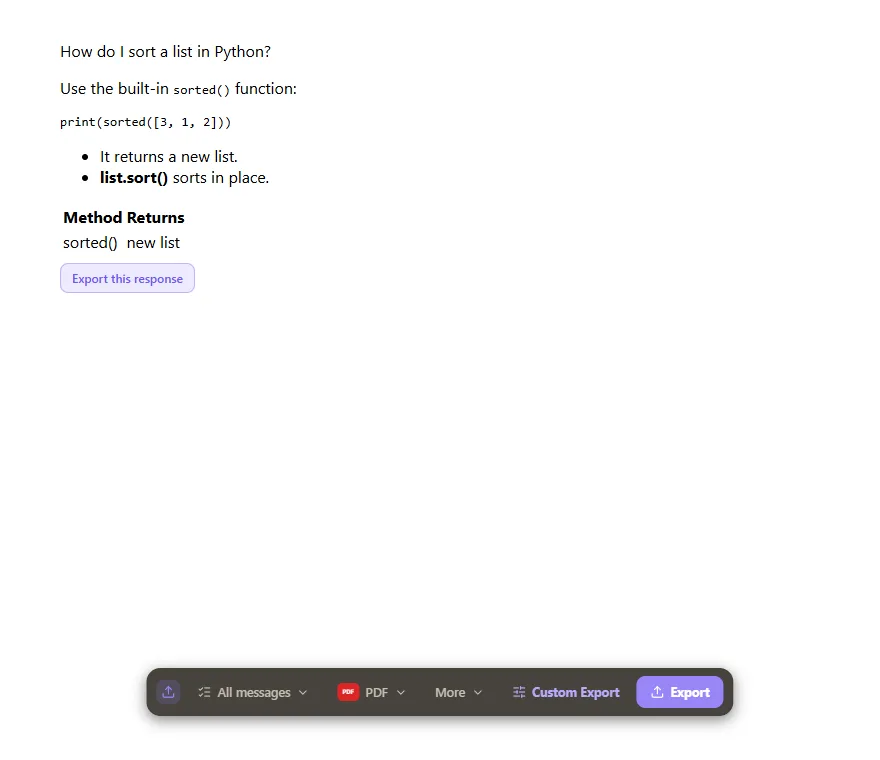
Headings, lists, tables, code blocks, links, bold and italic, and maths keep their formatting, and the model's thinking section can be included where ChatGPT shows one. The toolbar also lets you export only your prompts or only the answers, and Smart Copy puts the chat on the clipboard instead of downloading a file. Files are made in your browser; nothing is uploaded.
Exporting only part of a chat
Two ways, depending on how much you want:
- One answer: each response has an Export this response button under it.
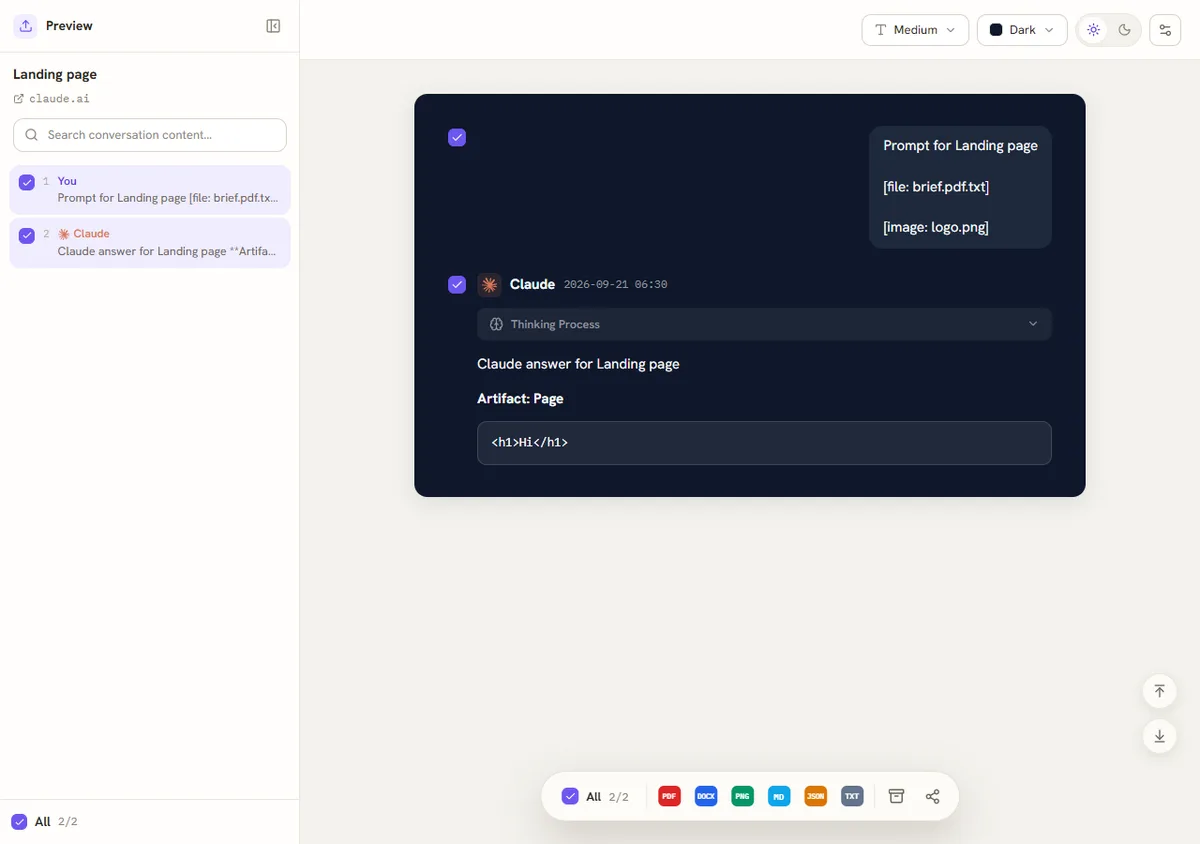
- A selection: open Custom Export, tick the messages to keep, choose a font size and one of eight colour themes, then pick the format. Settings also let you set a filename pattern from the title, date, time, service and model.
Which format to choose
- PDF to send or print. It looks the same everywhere and cannot be edited by accident.
- Word (.docx) to keep working on the text, or to open it in Google Docs.
- Markdown for notes: Obsidian, a code editor, a Git repository.
- Plain text when you want the words and nothing else.
- JSON to process the conversation with a script.
- Image to post a chat where files are awkward. The More menu adds an image archive (one image per message, in a .zip) and a single styled shareable image.
Limits to know
Questions
Does ChatGPT have a built-in PDF export?
Only for deep research reports, which download as Markdown, Word or PDF. For an ordinary conversation there is no built-in file export; the choices are a share link, copy and paste, printing the page, or an extension.
Can I download only part of a ChatGPT conversation?
Not with ChatGPT itself, apart from sharing an individual response as a link. With Backup My AI Chat you can export one response, or tick the messages you want in Custom Export.
Can I export a ChatGPT conversation on my phone?
Backup My AI Chat is a desktop browser extension and does not run on phones. On a phone, the share link and copy and paste are what ChatGPT offers.
How do I get all my conversations, not just one?
See how to back up all your ChatGPT chats: the official data export, bulk export, and an automatic backup to a folder.