 Backup My AI Chat
Guide
How to save ChatGPT, Claude and Gemini chats to Obsidian
An Obsidian vault is a folder of Markdown files, so any tool that writes Markdown into that folder puts notes in your vault. There are four practical ways to get AI chats there: copy and paste, the official Obsidian Web Clipper, a community plugin that imports each service's export file, and Backup My AI Chat, which writes every conversation into the vault and keeps it up to date.
The four ways at a glance
| Way | Services | One chat or many | Stays up to date |
|---|---|---|---|
| Copy and paste | Any | One, by hand | No |
| Obsidian Web Clipper | ChatGPT, Claude, Gemini and Grok have built-in support | The chat open in your tab, one click each | No |
| Nexus AI Chat Importer | ChatGPT, Claude, Mistral, Perplexity, Grok. Not Gemini | A whole account, from its export ZIP | When you request and import a new export |
| Backup My AI Chat | ChatGPT, Claude, Gemini, Perplexity, Grok and DeepSeek | Every conversation in each account | Yes, on a schedule |
Why this works: a vault is a folder
Obsidian stores notes as Markdown-formatted plain text files in a vault, and a vault is a folder on your computer, subfolders included. Obsidian refreshes the vault when files change outside the app (Obsidian on data storage). Properties, the fields shown at the top of a note, are YAML between two --- lines at the top of the file (Obsidian on properties).
So a tool does not need to be an Obsidian plugin. It only needs to write good Markdown into the right folder.
Way 1: copy and paste
Select the conversation, copy, and paste into a new note. It needs no tools and works for any service. It is one chat at a time, you add the title, date and link yourself, and you should check code blocks and tables after pasting. Fine for the occasional answer worth keeping.
Way 2: Obsidian Web Clipper
Web Clipper is Obsidian's own free browser extension, for Chrome, Edge, Firefox and Safari. Since version 0.11.3 it has built-in support for saving ChatGPT and Claude chats, with Gemini improved in 0.11.4 (release notes). Open a conversation, click the clipper, and the chat becomes a note.
It is the right choice if you save a chat now and then and already use the clipper for web pages. It clips the one conversation open in your tab, when you ask it to. It also reads the page as displayed, so a redesign of a chat site can break it for a while, as happened with Claude early in 2026 before a fix.
Way 3: Nexus AI Chat Importer
Nexus AI Chat Importer is a free community plugin. You request the official data export from ChatGPT, Claude, Mistral, Perplexity or Grok, then run the plugin's import command on the ZIP. It creates a note per conversation in a folder per provider, with frontmatter and an import report. Importing a newer export appends only the new messages and keeps your edits.
It is thorough, and it is the best way to bring in a history you already have as an export file. Every refresh needs a fresh export, which for ChatGPT can take up to 7 days to arrive, and Gemini is not supported.
Way 4: auto-save with Backup My AI Chat
Backup My AI Chat writes your conversations straight into the vault as they are, and then keeps them current. No Obsidian plugin is involved.
- Open Backup My AI Chat from the browser toolbar and go to Auto-save chats to a folder.
- Under Folder, choose your vault, or a folder inside it such as “AI chats”. Chrome asks once whether the extension may edit files in that folder. Auto-save writes nowhere else; one-off exports go to your Downloads folder.
- Under Accounts, tick the services to include. Each one shows whether you are signed in.
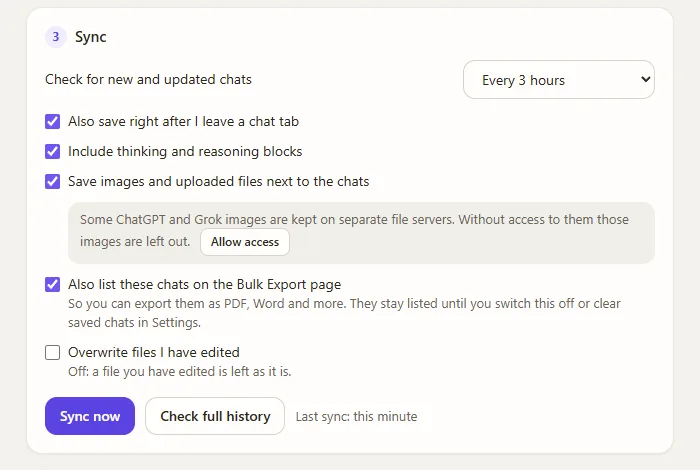
- Under Sync, pick how often to check for new and updated chats, then press Sync now. The first run saves your whole history; later runs save only what changed. A service is synced a few chats at a time, and if a site answers "too many requests" the extension slows down for that service rather than failing.
Open Obsidian and the notes are there, in one folder per service:
AI chats/
├── ChatGPT/
│   ├── 2026-09-12 Chat number 8.md
│   ├── 2026-09-13 Chat number 7.md
│   └── Projects/
│       └── Research 2026/
│           └── 2026-09-05 Project chat.md
├── Claude/
│   ├── 2026-09-16 Claude chat 5.md
│   └── Projects/
│       └── Website/
│           ├── Project instructions.md
│           └── Knowledge/
│               └── glossary.md
└── Grok/
    └── 2026-09-14 Grok talk 1.md
The header of each file lists title, source, conversation id, link, created, updated, model, message count and tags, which Obsidian shows as properties at the top of the note:
---
title: "Sorting a list in Python"
source: chatgpt
id: "…"
url: https://chatgpt.com/c/…
created: 2026-03-04T09:12:00Z
updated: 2026-03-04T09:20:41Z
model: "gpt-5"
messages: 2
tags:
  - ai-chat
  - chatgpt
---

# Sorting a list in Python

## You · 2026-03-04 09:12

How do I sort a list of dictionaries by a key?
What happens to notes you edit
This is the question the other guides skip. You will add links, highlights and comments to a saved chat, and then the conversation will continue. Backup My AI Chat handles that with one rule: a file you have edited is left as it is. The setting is called Overwrite files I have edited and it is off by default.
- You have not touched the note: when the chat grows, the same file is updated, and a renamed chat keeps its file. There is never a second copy.
- You have edited the note: your version stays. Switch the setting on only if you would rather always have the latest text from the chat.
Images and files uploaded in a chat go into a _files folder next to the note, where the AI site allows it, and the note links to them, so they show up in Obsidian like any other attachment.
Using the properties
Because every note has the same fields, you can filter and sort them: all Claude chats from this month, or every chat with a given model. With the Dataview community plugin, for example:
TABLE source, model, updated
FROM "AI chats"
WHERE source = "chatgpt"
SORT updated DESC
The tags field is a standard Obsidian property, so the tags on each chat also appear in the tag pane without any plugin.
Limits to know
Questions
Can I export ChatGPT conversations directly to Obsidian?
Yes, in three ways: clip the open chat with Obsidian Web Clipper, import an official export ZIP with the Nexus AI Chat Importer plugin, or point Auto-save in Backup My AI Chat at your vault so every chat is written there.
Do I need an Obsidian plugin?
Not for Backup My AI Chat or the Web Clipper. Both write ordinary Markdown files into the vault folder. Nexus AI Chat Importer is itself a plugin.
Can I bulk import all my ChatGPT chats into Obsidian?
Yes. Nexus AI Chat Importer does it from the official export ZIP, and Backup My AI Chat does it on its first sync, which saves your whole history before switching to new and changed chats only.
Does it work for Gemini?
Web Clipper has built-in Gemini support for the open chat. Nexus AI Chat Importer does not support Gemini. See exporting Gemini chats for what Backup My AI Chat covers.
Are code blocks and maths kept?
Backup My AI Chat keeps code blocks, tables, lists and links when it saves a chat, and writes maths in dollar-sign notation, which Obsidian renders. With copy and paste, check each note.